Memory On the Task List

Memory usage is another column on the task list that can help you understand what is happening under the hood of your computer. In my last blog, I wrote about CPU usage. Memory is similar to CPU in that it is a critical resource that affects computer performance and it can help evaluate malware on your system.

The Role of Memory

Without memory, often called RAM, your computer has Alzheimer’s. It may have the fastest processor in the world and the coolest programs, but it won’t do anything unless it can keep track of where it is at. The processor pulls an instruction from memory, executes it, and puts the result back into memory to use later. Without memory, a processor doesn’t know what to do next or what it has already done; it is nearly useless.

Memory vs Storage

Memory has to be as fast as the processor or the processor has to wait for data and instructions to be fetched from memory and results to be stored in memory for later use. Using present technology, the fastest memory is volatile. By volatile, I don’t mean memory is liable to fly off the handle and jet to Maui without provocation. Instead, data stored in volatile memory flys to Maui, as far as I know, when the electricity is switched off. In any case, it disappears.

Speed and volatility make memory different from storage. Data that stays around between computing sessions resides in storage, which is useful, but not when speed is the main consideration. Usually storage is on a hard disk. Hard disks are much slower than memory chips, but they store more data at less expense and they are not volatile. In other words, powering down does not affect data stored on a disk.

As processors get faster, memory must also get faster and speed is expensive. This makes memory a scarce and expensive commodity on computers. A laptop with 4 gigabytes of memory and a terabyte of storage has 400 times more storage than memory. At today’s prices, 1 gigabyte of memory costs about the same as 200 gigabytes of storage. Speed costs.

Performance and Memory

Memory is precious, but it performs. When developers have to make a process run faster, one way is to change the code to use memory instead of disk storage. If the developers go overboard and use more memory than the system has available, their optimization backfires. When the system starts to run out of memory, it moves data from memory to slower disk storage and the system begins to bog down as the processor waits for the slow moving data. The same thing happens when several heavy memory consuming processes run at the same time.

Memory Hogging

There are many reasons for heavy memory consumption. One I already mentioned— a process has been designed to consume more memory in order to perform well. Processes running above their designed capacity can also use extra memory. For example, a process designed to support ten simultaneous users might use much more memory if it is supporting a hundred users. Sometimes excess memory usage comes from defective code. A “memory leak” is a classic defect that causes processes to consume more and more memory the longer the process stays running.

Whatever the reason, when memory consumption reaches beyond the optimal level for your computing device, performance will slooooow. The cursor may get jerky. The keyboard will seem to hang, then spit out a clump of characters. When you attempt to start something new, there is a long pause. Nothing works right. Not pleasant. Not pleasant at all.

Memory Shortage Diagnostics

The task list is the first tool I use to determine if I have a memory shortage and what is causing it.

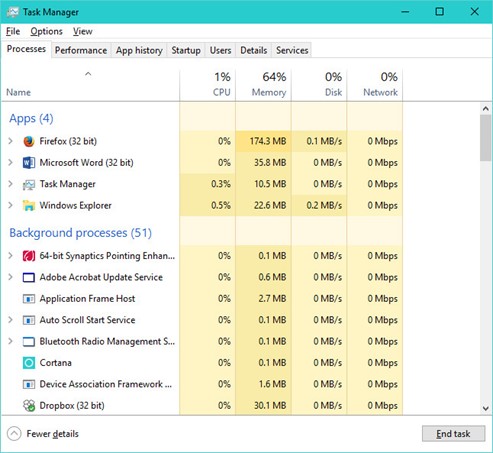
On Windows 10, a convenient way to get to the task list is to right click on the Windows icon in the lower left-hand corner of the screen. The task list will be below the line not too far from the center of the menu. Click on it.

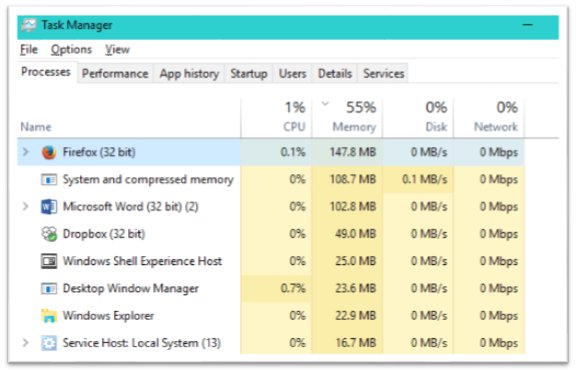
You will get something like this.

In this snapshot, 55% of available fast memory is in use. That is a good number. When the percentage gets above 60%, into the 70s and 80s, your system will begin to suffer. Here, I’ve clicked on the memory column header to sort the processes by memory usage. In this case, I had Firefox up when I took this screen shot and it is the biggest memory consumer. Firefox uses a lot of memory so popping up a new screen is snappy. Therefore, I don’t mind that it is a big consumer. If one of the heavy hitters was an application that I was not using, I would shut it down to free up memory for a performance boost.

Memory Hogging Malware

If a memory-hogging process happens to be malware, it’s bad. You seldom know what the malware is doing. It could be generating spam or sending large quantities of messages to a server that the hacker is trying to overwhelm. It could, perish the thought, be encrypting your files, preparing to demand ransom for their return. Hogging memory is not the only way malware can slow your computer, but it is one way.

As I mentioned in my previous blog, I Google a process name if I am not familiar with it. Usually it is a Windows internal process I don’t know about, but sometimes it will show up as malware.

Emergency Measures

Now we get into some risky stuff that could force you to restore your system, but could also avoid restoring the system. You will have to decide for yourself how much risk you are willing to take, and own the results.

Removing the executable file of the malware can stop the malware’s damage. If you want to remove the file from the system, right click on the process name in the task list, the click on “open file location.” From there, you can delete the executable, but you should think about that before jumping in.

It is always better to remove an application through “Uninstall or change a program” in the Control Panel if you can. Removal is often more complicated that removing a single file. Sometimes configuration files and registries have to be modified and several files deleted. The uninstall in Control Panel is supposed to clean up everything, and, unless the author of the uninstall was sloppy, it always does.

For malware, there usually is no uninstall. If an anti-virus tool detects malware, it will do a better job of uninstalling than you can do manually. So try an anti-virus scan of the malware executable file. If scan finds and eradicates the malware, you win!

Manual Kill

However, if the scan fails and there is no uninstall, I delete any malware files I can find. Deleting the wrong file by mistake will not harm your hardware, but it could require reinstalling your operating system and restoring from a backup. (Highly unpleasant.) However, in my opinion, if your system is already damaged by malware, deleting will probably do no more damage than has already been done and may stop the damage. Therefore, when all else fails, I usually choose to delete immediately to limit the damage. This is a risk I am willing to take, but it is a risk.

If the malware is clever (bad!) it may regenerate the file you deleted. Also, deleting a file out from under a running process may not kill the process, so you will have to hit the end task button to kill it.

Manual Kill Checklist
  • Verify that the process is malware
  • Run a virus scan on the file and let the anti-virus take care of it
  • Check “Uninstall or change a program” in the Control Panel on the off chance you can uninstall it there
  • If all else fails, try killing it with the “End Task” button and deleting the file

Good luck! You could save the day for yourself. Or ruin it. I’ve seen it both ways.

The Task List Reveals a Computer’s Beating Heart

Windows 10 Task List

Like an echocardiogram  that shows the blood flowing through a beating heart, the task shows the flow of activity on a computer. On Apple products, the task list is called the activity list. In Unix and its derivatives, such as Linux and Android, the task list is usually called the process list. In all of these operating systems, a task, activity, or process, whichever you want to call it, is an executing program. Most of the time, there are a lot of them.

Processors

A processor can only run one process at a time, but they switch between processes so rapidly it looks like a processor is running many processes at the same time. All the processes on the task list have been started but have not finished. Some are waiting for input, others are waiting for a chance to use some busy resource like a hard drive, but all are entitled to some time on the processor when their turn comes up.

Many computers today have more than one processor, which increases the number of processes that can run at one time and the amount of time a computer can give to each process. Different operating systems have different strategies for switching between processes, but all the strategies are like plate spinning acts. The plate spinner hurries from plate to plate, giving plates a spin when they begin to slow down and need attention. (If you don’t know what plate spinning is, see it here.) The processor does the same thing, executing a few instructions for a program, then rushing to the next process.

Processes

All the processes, both active and waiting, show up on the task list. That includes malware as well as legitimate processes. If you can spot a bad guy on the process list, you can kill it. The kill may not be permanent, processes can regenerate themselves, but it is usually worth a try. The challenge is to sort the good from the bad. Unless you know what you are shooting at, you might crash the entire computer or lose data, so be careful. You could find yourself restoring your entire system from a backup. Nevertheless, this is one area where you can strap on your weapons and wage open warfare against malware.

When I see an unfamiliar process on the task list, I usually run to Google. Most of the time, Google results tell me that the process is something innocuous that I hadn’t noticed before, but not always. By the way, be a little careful when Googling. There are questionable companies out there with sites that will appear in the search result and try to take advantage of you by offering unnecessary clean up services or dubious downloads. Microsoft will give you trustworthy advice, as will the established antivirus companies, but avoid sending money or installing programs from places you have never heard of. Some may be legitimate, but not all. Above all, don’t let anyone log into your computer remotely without rock solid credentials.

CPU Time

The task list tells you more than just the names of the running processes. There are number of readouts on the state of each process and the resources it is using. The one I usually look at first is the percentage of CPU time being taken and the accumulated CPU time. (Click at the top of the column to sort the processes by the metric.) Both of these metrics show the amount of time a process consumes on the processor–the amount of time the plate spinner has spent spinning the plate. A program that consumes more CPU time is using an extra share of the system’s most critical resource. Shutting down a high CPU consumer will do more to improve your computer’s performance than halting a low CPU consumer.

Some high-consumer processes are legitimate. For example, you will often see a browser using a lot of CPU time. That is because a browser does a lot of work. Any computing that takes place in web page interactions is chalked up to the browser. Some internal system processes, such “system interrupts,” do a lot of work also and rank high on CPU consumption. If you see an installed application that is hogging down CPU, you might check its configuration. There may be adjustments that will reduce consumption. Google will help you find what to do, but keep track of your changes so you can change them back if they don’t work. If you don’t use the program much, perhaps turning it off would be a good idea. When a high consumer happens to be malware, put a high priority on scrubbing it out. A high CPU-consuming malware is like a blockage in a coronary artery. You’ll feel much better without it.

Next Time

There’s more to the task list. Next time.

Personal Cybersecurity: How To Create a Local Account

I am turning in a new direction in this blog. Up to now, I have been writing to software architects and engineers. Apress has given me a contract to write a book called Personal Cybersecurity and I’ve just given a series of presentations on personal computer security at my local library. My previous two books, Cloud Standards and How Clouds Hold Together IT, are both aimed at enterprise software engineers. I hope Personal Cybersecurity will appeal to computer users in general, not just engineers. I gave the library presentations to see what happens when I talk to people who don’t speak engineer’s jargon. When I returned to my office after the last presentation, I was fretting about all the important things that I left out. For the next few blogs, I’ll write for the folks who attended my presentation–computer users who know how to use their devices but are not software engineers or developers. I’ll try to fill in some gaps in the presentation, and perhaps go farther.

For people who did not attend the presentations, but would like to read the PowerPoints, here are One,  Two, and Three.

Create a local admin account tutorial

The first gap I want to fill is a step-by-step tutorial for setting up a local admin account on Windows 10. In the presentation, I warned that running as administrator all the time can make a hacker’s life easier by freely offering them administrator privileges. I forgot to mention that creating a local account in Windows 10 is like thrashing through a maze blindfolded with rocks in your shoes. The twists and turns are hard to follow. Here is a link to a PowerPoint tutorial that shows every step in Windows 10. Earlier Windows OSs make it less convoluted, but the steps are roughly the same. See the tutorial here.

Coming Soon

I am wincing over the meager advice I gave on detecting when a device has been hacked. It will take more than one blog to compensate. In the next blog, I plan to write about one of my favorite tools for spotting a hack beyond anti-virus: The Windows task list. I’ll try to keep the discussion simple, but the task list is an advanced and powerful tool and it does take some understanding of how computers work. It may take some extra effort to understand, but I think it will be worth it. Understanding the task list can help with more than just hacks.

But that is for next time.

How is OVF different?

The number of standards, open source implementations, and de factor standards for cloud management is growing. CIMI, OCCI, TOSCA, Open Stack, Open Cloud, Contrail. OVF (Open Virtual Format) is a slightly older standard that plays a unique role, but architects and engineers often misunderstand its role.

Packaging Format

What is OVF and how is it useful? OVF is a virtual system packaging standard. It’s easy to get confused on exactly what that means. A packaging standard is not a management standard and it is not a software stack. The OVF standard tells you how to put together a set of files that clearly and unambiguously define a virtual system. An OVF package usually has system images of the virtual machines that will make up the virtual machines in the package. A package also contains a descriptor that describes virtual configurations that will support the images in the packages and how the entire system should be networked and distributed for reliability and performance. Finally, there are security manifests that make it hard for the bad guys to create an unauthorized version of the package that is not exactly what the original author intended.

A packaging format is not designed to manage the systems it deploys. To expect it to do that would be like trying to manage applications deployed on a Windows platform from the Control Panel “Uninstall A Program” page. There are other interfaces for managing applications. The OVF standard also does not specify the software that does the installation. Instead it, is designed as a format to be used by many virtualization platforms.

Interoperability

OVF is closely tied to the virtualization platforms on which OVF packages are deployed. The DMTF OVF working group has members from most significant hypervisor vendors and many significant users of virtualized environments. Consequently, an OVF package can be written for almost any virtualization platform following the same OVF standard. The standard is not limited to the common features shared between the platform vendors. If that were the goal, OVF packages would be inter-operable, that is a single OVF package would run equally well on many different platforms, but because platform features vary widely, the package would of necessity be limited to the lowest common denominator. In fact, OVF packages can be written that are interoperable, but they seldom are because most OVF users want to exploit the unique features of the platform they are using.

An OVF Use Case

Is an OVF package that is not interoperable among platforms useful? Of course it is! Let’s look at a use case.

Here’s an easy one. I have a simple physical system, let’s say a LAMP stack (Linux, Apache, MySQL, and Perl, Python, or PhP) that requires at least two servers (one for an http server, the other for a database).  I this configuration use over and over again in QA. If I want to go virtual, an OVF package for this LAMP stack implementation is simple. After the package is written, instead of redeploying the system piece by piece each time I need a new instance, I hand the OVF package to my virtualization platform and it deploys the system as specified, exactly the same, every time. This saves me time and equipment as I perform tests every few weeks that need a basic LAMP stack. When the test is over, I remove the LAMP stack implementation and use the physical resources for other tests. Then I deploy my LAMP stack package again the next time I need it.

Of course, I could do all this with a script, but in most similar environments, formats and tools have supplanted scripts. Look at Linux application deployments. I remember writing shell scripts for deploying complex applications, but now most applications use standard tools and formats like installation tools and .deb files on Debian. .deb files correspond fairly closely to OVF packages. On Windows, .bat files have been replaced with tools like InstallShield or Windows Installer. Why? Because scripts are tricky to write and hard to understand and extend.

OVF provides similar advantages. With an OVF package, authors don’t have to untangle idiosyncratic logic to understand and extend packages. They don’t have to invent new spokes for a script’s wheel and they can exchange packages with other authors written in a common language.

Interoperability between virtualization platforms would be nice, but I still get great benefits without it.

An International Standard

It is also important to realize that OVF has significant visibility as an international and international standard. OVF has been through a rigorous review by national standards body (ANSI) and an international standards body (ISO/IEC). You may ask if that is significant. Who cares? After all, don’t hot products depend on cool designs and code, not stuffy standards? Maybe. The next hot product may not depend on OVF, but I’ll guarantee that if not today, sometime in the near future, you will interact with some service that is more reliable and performs better because it has an OVF package or two in the background. Hot prototypes may not depend on OVF, but solid production services depend on reliable and consistent components, which is exactly what OVF is for.

Every builder of IT services that run on a cloud or in a virtual environment should know what OVF can do for them and consider using it. They should look at OVF because it is a stable standard, accepted in the international standards community, not just the body that published it (DMTF), and, most of all, because it will make their products better and easier to write and maintain.